

 admin
admin
🎯 Why This Matters You’re in a critical team fight in RoV (Arena of Valor). Suddenly, your hero stops moving, and the screen freezes for a split second. That one moment of lag is the difference between a “Victory” screen...
🎯 Why This Matters
You’re in a critical team fight in RoV (Arena of Valor). Suddenly, your hero stops moving, and the screen freezes for a split second.
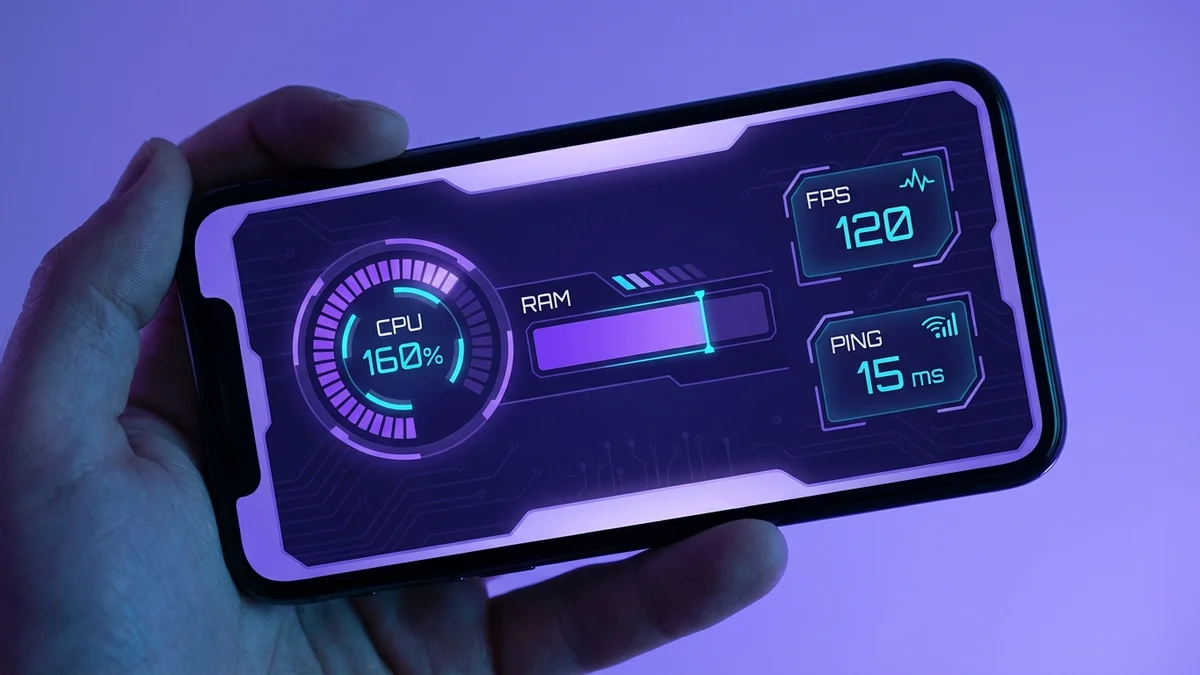
That one moment of lag is the difference between a “Victory” screen and losing a star. In Thailand’s competitive gaming scene, milliseconds matter.
Lag isn’t just one problem. It can be high ping (network delay) or low FPS (Frames Per Second), which is your phone struggling to keep up.
This guide will help you fix both, so you can play smoothly like the pros from Buriram United Esports.
📋 Step-by-Step Guide
Before you try advanced tricks, master these essential basics. Think of this as your pre-game checklist for a flawless performance.
- 1. Test Your Internet Connection: Your internet is the number one cause of lag. Use an app like Speedtest to check your ping. For competitive games like PUBG Mobile, you want a stable ping under 50ms.
- 2. Close All Background Apps: Apps like LINE, Facebook, and TikTok are always running. They use your phone’s RAM and CPU power, stealing resources from your game. Before you play, force-close every app you don’t need.
- 3. Clear Your Game’s Cache: Over time, games store temporary files that can become corrupted and cause slowdowns. Go to your phone’s Settings > Apps > [Your Game] > Storage, and tap “Clear Cache.” Do not hit “Clear Data” unless you want to reset your game!
- 4. Lower Your In-Game Graphics: This is the easiest way to boost your FPS. In your game’s settings, change Graphics to “Smooth” or “Medium” and Frame Rate to “High” or “Ultra.” A smooth frame rate is more important than shiny graphics.
- 5. Restart Your Phone and Router: It’s a classic for a reason. Restarting your phone clears its temporary memory (RAM). Unplugging your Wi-Fi router for 30 seconds and plugging it back in can solve many hidden connection problems.
💡 Pro Tips
Ready to take your game to the next level? These are the tricks that separate casual players from serious competitors.

- Master Your Wi-Fi Signal: Don’t play in a room far from your router. For the best connection, switch your Wi-Fi to the 5GHz band instead of 2.4GHz. It’s faster and less crowded, especially if you live in a condo with many neighbors.
- Optimize Your Mobile Data: If you’re playing on AIS, True, or DTAC, check your plan. Many carriers offer special “gaming packages” with unlimited speed for popular games. Avoid playing during peak hours (like 7 PM – 9 PM) when the network is busy.
- Enable “Game Mode” on Your Phone: Most modern Android phones have a built-in Game Mode or Game Turbo. This feature blocks notifications, optimizes your network connection, and pushes all your phone’s power towards the game. Find it in your phone’s settings and turn it on.
- Use a Custom DNS: Sometimes, your internet provider’s default DNS is slow. Changing it can create a faster path to the game servers. You can try using Google’s DNS (8.8.8.8) or Cloudflare’s (1.1.1.1) through your phone’s Wi-Fi settings for a potential ping improvement.
- Keep Everything Updated: Always install the latest updates for your game and your phone’s operating system (iOS or Android). Developers constantly release patches that fix bugs and improve performance. A small update can make a huge difference.
⚠️ Common Mistakes to Avoid
Sometimes, what you do is the problem. Avoid these common mistakes that secretly create lag.
- Playing with a Low Battery: When your phone’s battery drops below 20-30%, it often enters a power-saving mode. This mode reduces your processor’s speed (throttles the CPU) to save power, which directly causes low FPS and stuttering. Keep your phone charged.
- Ignoring Phone Temperature: If your phone feels hot, it’s already slowing down. This is called thermal throttling, where the phone protects itself from damage by reducing performance. Play in an air-conditioned room or take a short break to let it cool down.
- Using a VPN While Gaming: A VPN sends your internet traffic through an extra server, which almost always increases your ping. Unless you absolutely need it to connect to a different region’s server, turn your VPN off before playing.
- Having Full Storage: When your phone’s storage is more than 90% full, the whole system can become slow. Your game needs space to run smoothly. Delete old videos, unused apps, and clear out your LINE chat history to free up at least 10GB of space.
🏆 Quick Summary
No time to read everything? Here is the absolute minimum you need for a lag-free gaming experience in Thailand.
- Your connection is everything. Use stable Wi-Fi (5GHz band) or a strong 4G/5G signal.
- Close all other apps before you launch your game. Your game needs 100% of your phone’s power.
- In the game’s settings, choose a higher frame rate over better graphics.
- Keep your phone cool and charged above 30% to avoid performance drops.
- Restart your phone and router once a week to keep them running fresh.


Comments (0)